
Disabling staff login in TextCRM ensures that users who no longer need access can be restricted from logging into the system. Follow the steps below to disable staff login effectively.
Steps to Disable Staff Login
Step 1 : Go to the Agent List
- Navigate to the Manage Agent menu in the main navigation bar.
- Select the Agent List option to view the list of all agents and staff members.
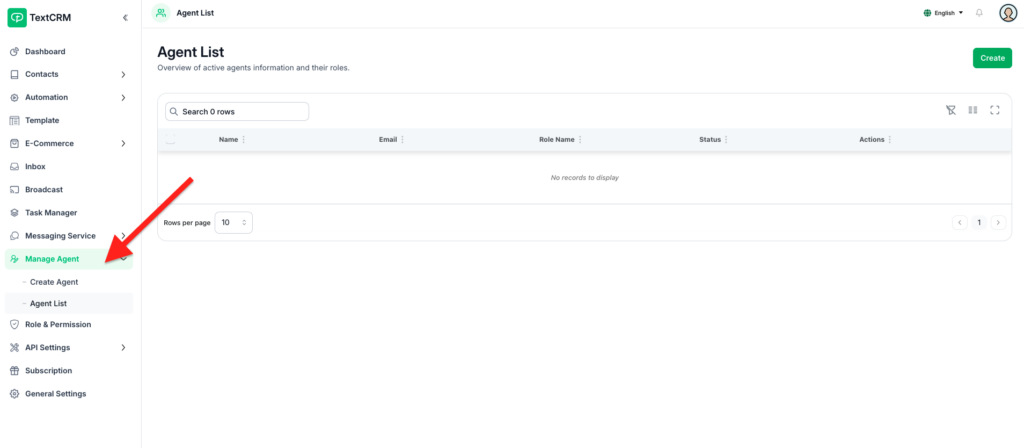
Step 2 : Locate the Agent
Use the search bar or browse through the list to find the specific agent whose login access needs to be disabled.
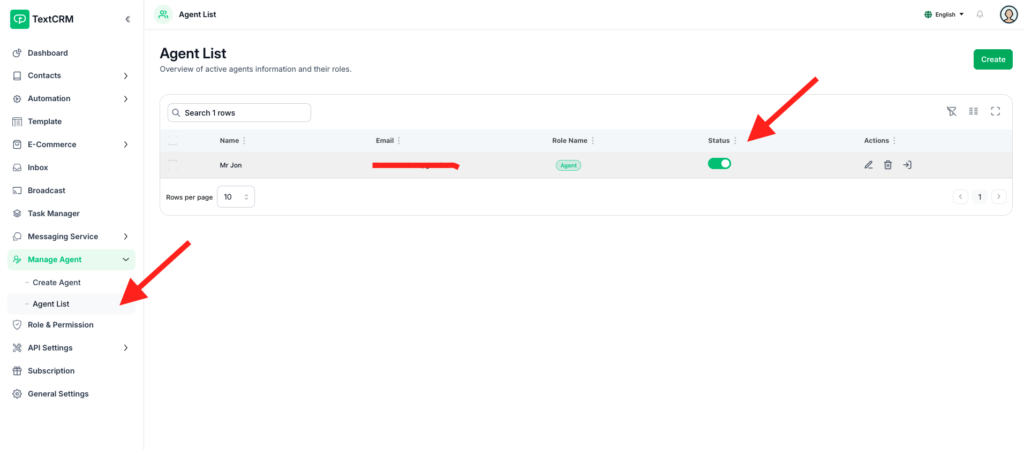
Step 3 : Click the Status Toggle
Next to the agent’s name, locate the Status Toggle (Enable/Disable icon).This toggle allows you to change the login status of the agent.
Step 4 : Update the Status
Click the Status Toggle to disable the agent’s login.
- When disabled, the agent will no longer be able to access the system.
Step 5 : Save Changes
If the system requires confirmation, review the changes and click Save to finalize.
Outcome #
Once the status is updated:
- The agent’s login will be disabled immediately.
- They will no longer have access to TextCRM until the status is re-enabled.
Additional Notes #
- Visibility of Status:
- Disabled agents will appear with an “Inactive” or “Disabled” status in the agent list for easy identification.
- Reactivation:
- To re-enable login, repeat the steps above and toggle the status back to “Enable.”
- Audit Trail:
- Ensure changes are logged for accountability, especially in larger teams.
This process provides an efficient way to manage access for agents and staff securely.


