
The admin panel in TextCRM allows you to log in as a staff member for troubleshooting or management purposes. This feature enables admins to access staff accounts temporarily and revert back to their own account seamlessly.
Steps to Login to a Staff Account
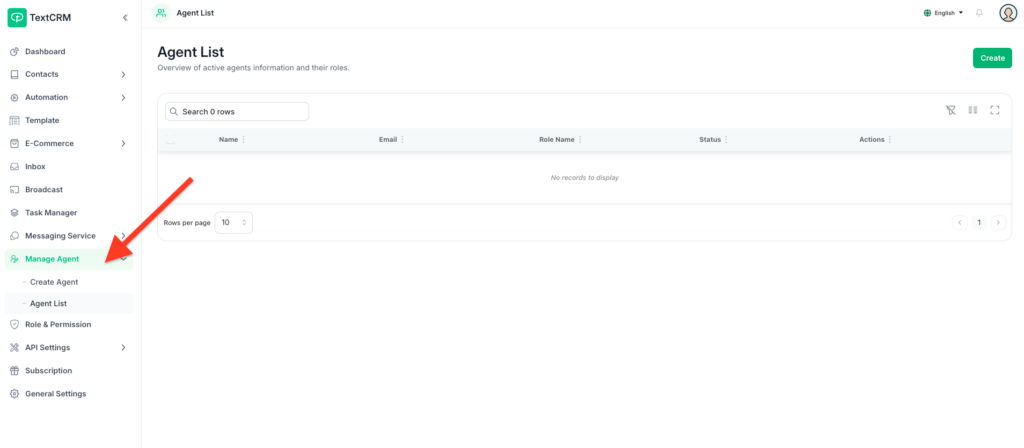
Step 1 : Go to the Agent List
- Navigate to the Manage Agent menu in the main navigation bar.
- Select the Agent List option to view all agents and staff members.
Step 2 : Locate the Staff or Agent Member
- Use the search bar or browse through the list to find the specific staff member whose account you want to access.
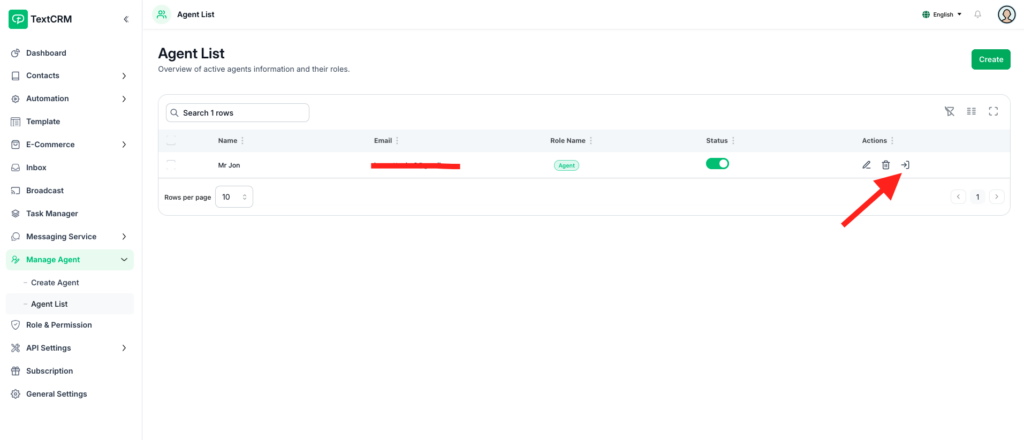
Step 3 : Click the Login Button
- Next to the staff member’s name, locate the Login button.
- Click the Login button to access the selected staff member’s account.
Step 4 : Access the Staff Account
- After clicking the Login button, you will be redirected to the staff member’s dashboard.Y
- You can now perform actions on behalf of the staff member or view their account as needed.
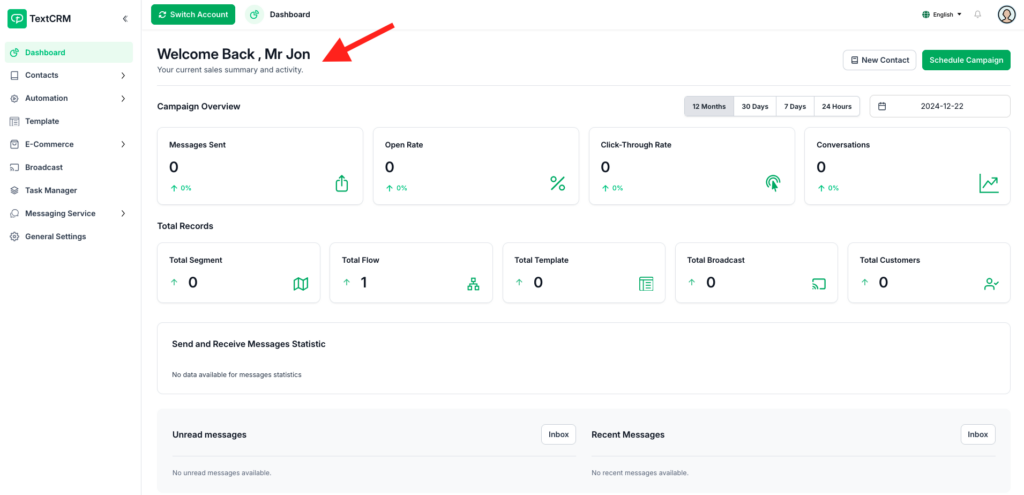
Step 5 : Return to the Admin Account
- To log out of the staff account and return to your admin account:
- Click the Return to Admin button (usually found in the top-right corner or user menu).
- This will redirect you back to the admin panel.
Additional Notes #
- Temporary Access Only:
- This feature does not permanently change the staff’s account; it allows temporary access for management purposes.
- Audit Logs:
- Ensure that all login activities are logged for accountability and transparency.
- Permissions:
- Only admins with the necessary permissions can access staff accounts.
Outcome #
By following these steps, you can seamlessly log in to a staff account for troubleshooting, support, or management tasks, and return to your admin account without disrupting workflows.


